
Frequently Asked Questions
Accounts
-
How do I change my email address?
How do I change my NeurIPS.cc login email address?
Contact technical support using the Contact NeurIPS page located under the NeurIPS menu. Please include the both your existing email and new address.
If you have two neurips.cc acounts that you want to merge visit this page
-
How do I create an account?
How do I create an account?
Step 1 Create Account
Step 2 Activate your account
- After you create your account we will send you an email with the Subject: “Please complete your neurips.cc profile”.
- Follow the instructions in the email to activate your account
- If you do not receive the email, check your spam folder and then contact support
-
How do I merge my multiple neurips.cc accounts?
Merging multiple neurips.cc accounts/profiles
NeurIPS accounts also called profiles are always associated with a single email address. Many people have multiple email addresses and may end up with multiple accounts. This can happen if you submitted a paper with an email that is different than your NeurIPS account email.
It is ok to have multiple accounts, but if you prefer to have all your information in one account we can merge your accounts. see the MergeAccounts page for details.
-
How do I reset my NeurIPS.cc password?
I've forgotten my NeurIPS.cc password. How do I login?
Note that the paper submission site and NeurIPS.cc are not linked. You may have different usernames and passwords on the submission site than at NeurIPS.cc.
Reset NeurIPS.cc Password -
How do I set my Email and Newsletter Preferences
Email and Newsletter Preferences
We occasionally send emails about upcoming NeurIPS conferences, even if you're not registered for the conference such as
- Announcing when registration opens.
- Reminders if you're registered for this years conference.
- After the conference we might also send an email describing how to get a certificate of attendance.
- NeurIPS Newsletter, an infrequent email that has important announcements ranging from changes how papers are reviewed to descriptions of changes to a conference format.
Change your email preferences
-
The system says I do not have an account.
I already created an account, but the system says I do not have an account.
NeurIPS.cc and the submission website OpenReview are independent websites with different accounts. Please use the same email address for each because it makes it easier for us to link accepted papers to neurips.cc accounts.
If you do end up with multiple accounts you can merge them
Badge Replacement Policy
-
Badge Replacement Policy
Badge Replacement Policy
You will not be allowed into the conference without a badge.
- Treat your Badge like cash.
- See the policy below if you need a new badge because you have lost your badge or you left it at the hotel.
Badge Replacement Policy
- 1st Replacement
- Full Price. You will need to purchase a new registration for the current and remaining conference sessions you wish to attend.
- Your replacement fee will be refunded after the conference if you return to the registration desk with both badges within 24 hours.
- 2nd Replacement
- Full Price. You will need to purchase a new registration for the current and remaining conference sessions you wish to attend.
- There will be no refund.
Damaged or Updated Badges
- We will replace for free badges that are damaged, scuffed, or need to be updated due to change of institution.
Credit Card Payments
-
How is my credit card information protected?
How is my credit card information protected?
Your information is protected by TLS encryption between your browser and the card processor. We never handle your credit card number and we are PCI compliant.
-
Where is my refund?
Where is my Credit Card refund
I should have received a refund by now, but it's not on my credit card activity. Where is my refund?
Thanks to the workings of the credit card networks, refunds can take up to two weeks to process. If you still haven't received a refund after 3-4 weeks, please contact us at support@neurips.cc and we will trace your slow or missing refund.
-
Why was my credit card payment declined?
Why was my credit card payment or refund declined?
If the website does not tell you the problem, there is regrettably little we can do to help. For security reasons, banks will not answer questions from anyone other than the account holder. If you cannot get the payment to go through, we recommend either you contact your issuing bank, or use a different card.
If you are using an institutional or government credit card you may need to contact the responsible department to pre-authorize your charge. In previous years some registrants have run into problems with cards that are restricted to a very limited set of merchants or require advance notice on transactions over a certain amount.
Exhibitors
-
Exhibitor FAQ
Exhibitor FAQ’s
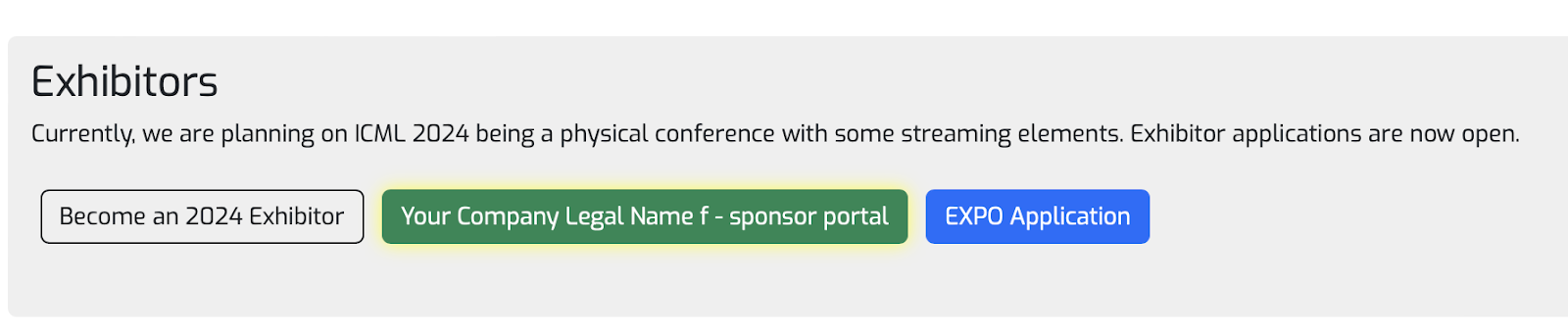
Q: How do I access the Exhibitor Portal?
A: Please click on the Green button with your company name. See image below:
Q: How do I get an invoice for payment?
A: Click on “Send Invoice” in the exhibitor portal. Verify the information, including the PO number is correct (if applicable). Then click the button to email to yourself. If your company requires the invoice to come from the conference, please notify us immediately.
Q: What happens if the invoice information is incorrect?
A: The invoice is auto-generated from the information you’ve entered in the “your information” section of the application. If you need name changes, a PO number added, etc., please update your information section, refresh the page, click on the “Send Invoice” tab, and send to yourself.
Q: How can other members of my team gain access to the exhibitor portal?
A: They must create a profile on the website first. Then you can add them to the exhibitor badge section, click save. They will notice the same green tab on their homepage that is shown on the first Q/A on this sheet.
Q: How do I get access to the attendee list?
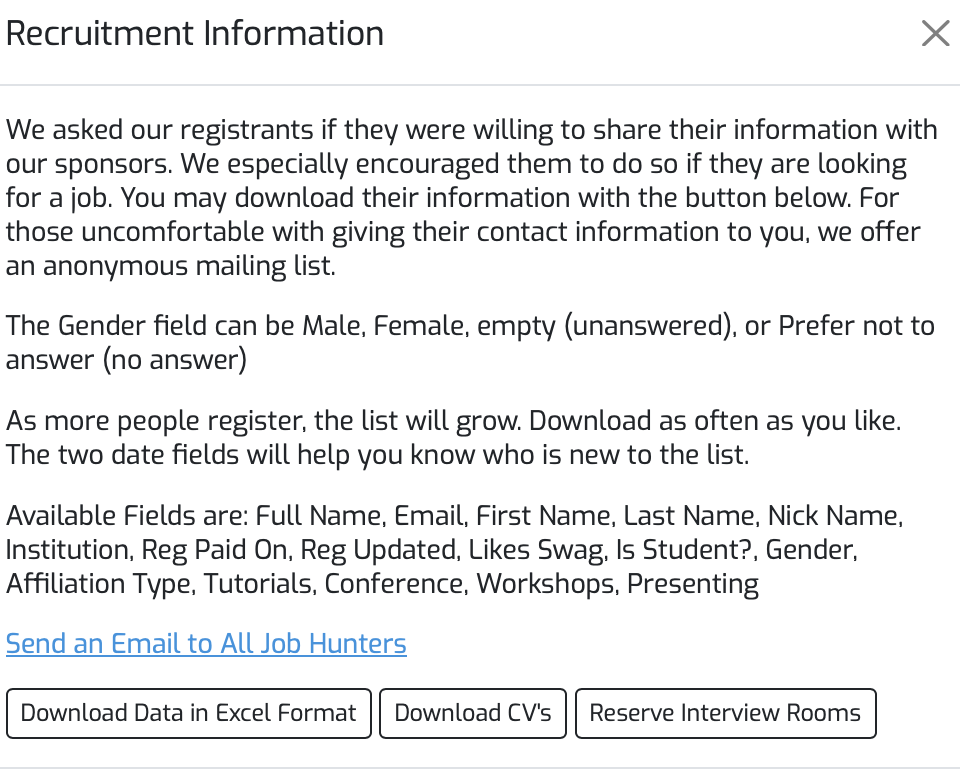
A: You will not have access to the Opt-In attendee list until we have received a signed contract and payment from your company. Once we have these items, you will see a BLUE “Recruitment Information” tab in the exhibitor portal. Once you click that, a window pops up where you can download an Excel sheet and a Zip folder of CV’s for your recruitment efforts. See image below
Q: Does the conference have a lead scanning system?
A: Yes! This is built into the exhibitor portal and you will have access once the signed contract is submitted and we have received payment. Until then, please review our Wiki page with specific instructions on how it works. No app or scanning device required.
Q: Who gets access to lead scanning?
A: Only the team members who have been entered into the exhibitor badge section of the portal will have access. If someone from your team needs a full conference registration but also wants access to lead scanning then you may add them to both sections.
Q: What if my company needs additional exhibitor badges or full conference registrations?
A: The conference does not sell additional exhibitor badges. Your company will need to purchase any type of registration (usually the cheapest) to gain access to the exhibit hall. If your company needs additional full conference registrations then those will need to be purchased at the company’s expense.
Q: How come my logo won’t upload in the portal?
A: The only file accepted is an svg file. Be sure you are using the correct format. If the file you are uploading isn’t an svg file, please work with your team to create one.
Q: Is the Certificate of Insurance (COI) required?
A: Yes! Even if you have an exhibitor appointed contractor (EAC). The COI we are asking for is liability insurance for your employees who will be working the booth at the conference venue, which is not the same as the COI for an EAC. Be sure to upload before the deadline.
Q: What if my company doesn’t carry general liability insurance?
A: You will need to work with your company to find an international general liability insurance carrier.Q: Can my company get a breakdown of attendee demographics?
A: The conference has strict privacy policies, so we do not share that information with exhibitors.
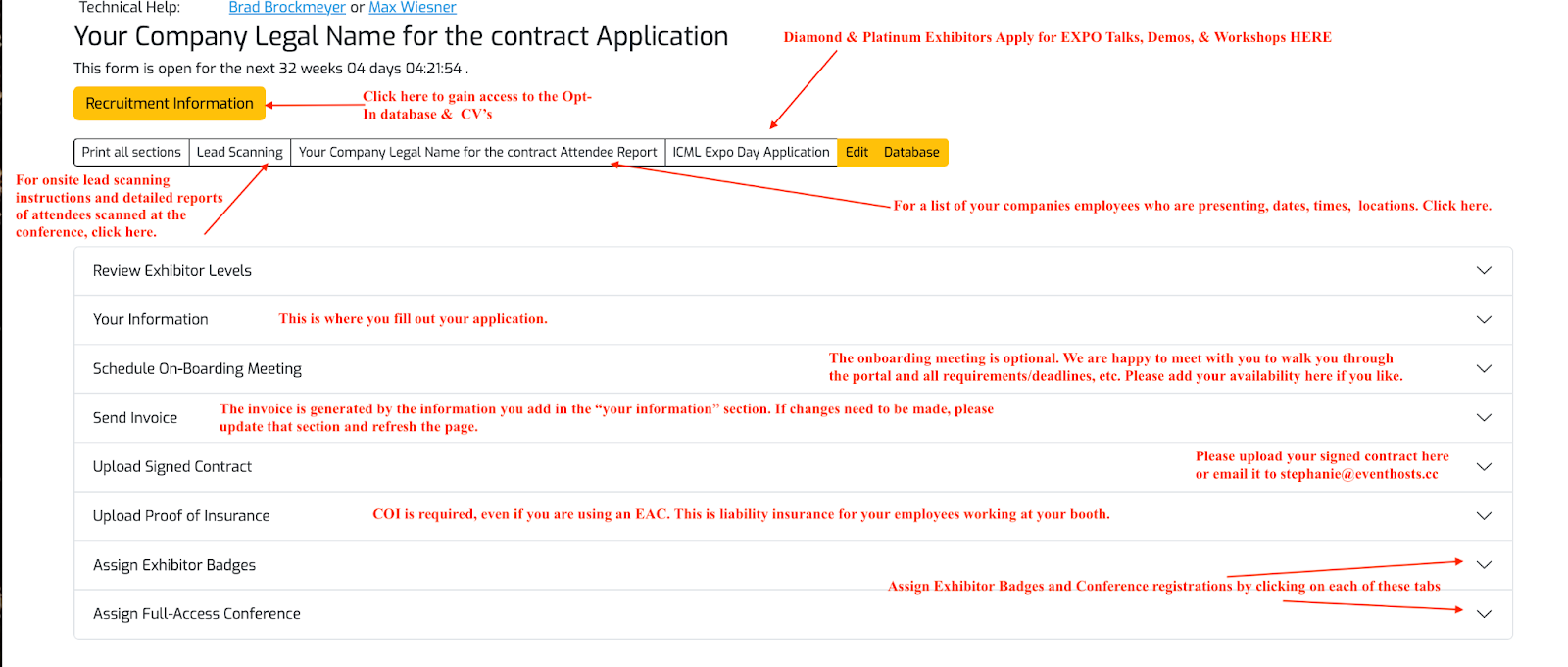
Q: How do I fill out the exhibitor application with the correct information?
A: Please see the image below with helpful tips.
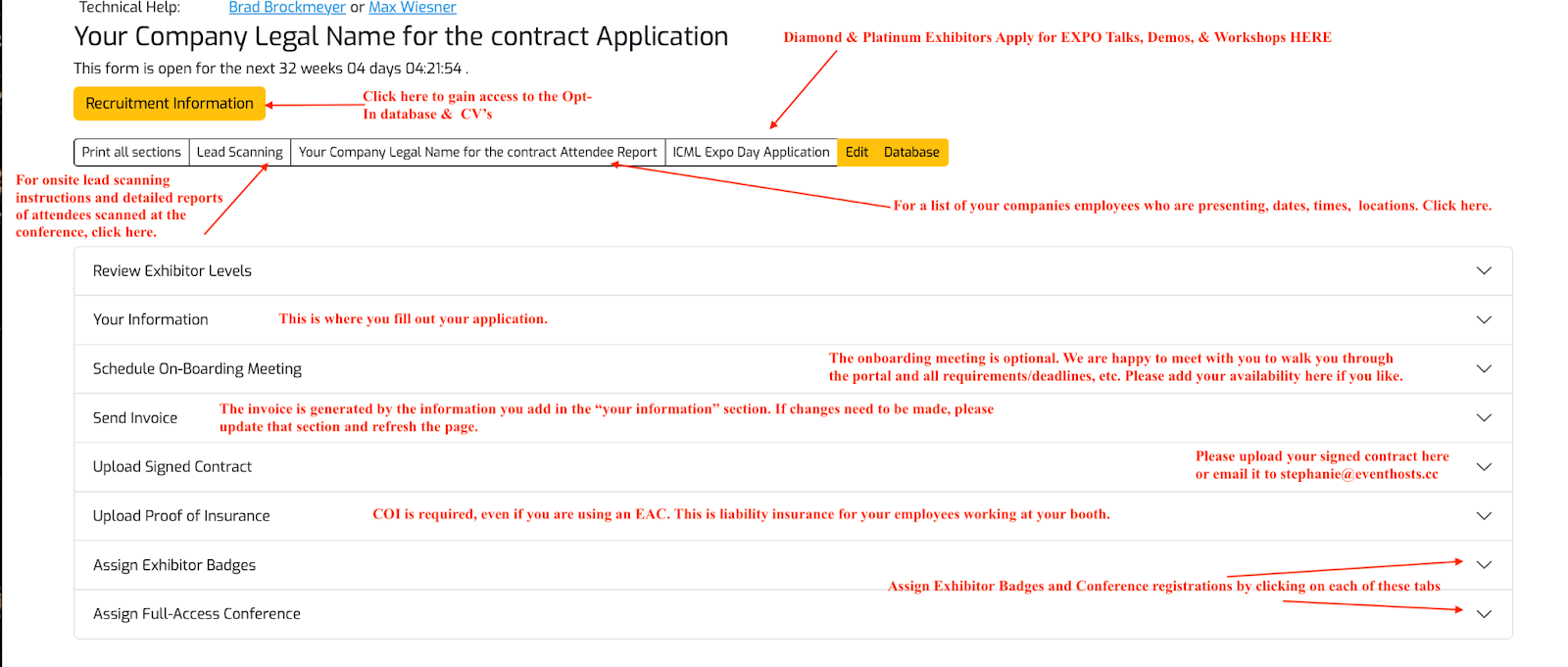
Please see the image below that you may also find helpful in navigating the exhibitor portal.
Onsite At the Conference
-
Interacting with the Press
Press at NeurIPS
There will be press at NeurIPS. We recommend checking with your communications/PR team who manage media interviews for your employer to discuss corporate communication policies. As presenters, when showing public work in a space with active media teams, know that:
- Reporters will be identified via their login and badge and asked to identify themselves as media prior to interacting with attendees.
- Check with your PR team or manager about what strategy your group intends to follow regarding interactions with the media.
- If you have any questions related to media interaction, direct the member of the press to speak with your communications representative.
Papers
-
Author Registration
Author Registration
- At least one author of each accepted paper must register for the main conference. A ‘Virtual Only Pass’ is not sufficient.
- If the author is a student they only need a student registration.
- Only one registration is needed even if the author has multiple accepted papers
We reserve the right to remove any paper from the acceptance pile if no authors registered and presented the paper in the conference in person in our official locations
-
Paper Copyrights
Who holds the Copyright on a NeurIPS paper
According to U.S. Copyright Office's page, What is a Copyright, when you create an original work you are the author and the owner and hold the copyright, unless you have an agreement to transfer the copyright to a third party such as the company or school you work for.
Authors do not transfer the copyright of their papers to NeurIPS. Instead, they grant NeurIPS a non-exclusive, perpetual, royalty-free, fully-paid, fully-assignable license to copy, distribute and publicly display all or part of the paper.
Registration
-
Can I updated my registration receipt?
Registration Receipts
- Registrations need to be purchased using a credit card. We do not generate invoices for registrations.
- We will email you a receipt after you register.
Updating Your Receipt
- To change your Name or Institution Edit your Profile
- To add custom billing information on your receipt
- Find your registration in the Registration History section of your My Stuff page
- Click on the Receipt button and add the information and download the PDF
To email yourself a copy of your receipt
- Visit your Profile
- Under "Registration History" click the year
- Open section 3. Payment and Receipt
- Click the "Email Receipt and Registration Barcode" button
- The receipt will be emailed to you
-
Full Time Student Discount
* Full Time Student
You must be a full time student in an accredited undergraduate, masters or graduate program or have submitted an accepted paper while you were a full time student.
- You will be required to upload a jpg of your of your student ID or other documentation that shows that you are a student
- You will also need to present the documentation when you check in at the registration desk.
Academic
If your expenses are being paid by a degree granting university or non-profit research institute, purchase registration using Academic.
Industrial / Non-Academic
If your expenses are being reimbursed by a corporation or other non-academic institution, please purchase registration with Industrial / Non-Academic pricing.
Virtual Only Pass
The virtual only pass includes virtual-only access to the entire conference's live streams and the ability to interact using our mobile app
-
How do I change my registration?
How do I change or cancel my registration?
Registration Cancellation Policy
How to cancel my registration
- Click My Stuff in the top navigation bar.
- Under Registration history click the current year.
- Click 3. Payment and Receipt.
- Click the red Cancel Registration button.
- If you are before the Cancellation Deadline, you will get a full refund issued to your credit card. The refund can take 10 business days to post to your account. If you are after the Cancellation Deadline, you cannot get a refund.
How to cancel part of my registration
- Click My Stuff in the top navigation bar.
- Under Registration history click the current year.
- Click 2. Register and unselect the sessions that you want to cancel
- Click the blue Payment button and follow the prompts.
- If you are before the Cancellation Deadline, you will get a refund issued to your credit card. The refund can take 10 business days to post to your account. If you are after the Cancellation Deadline, you cannot get a refund.
How to add conference or workshops to my registration
- Click My Stuff in the top navigation bar.
- Under Registration history click the current year.
- Click 2. Register and select the sessions that you want to add, do not unselect the sessions that you still want to attend, You will ony be charged for the additional sessions
- Click the blue Payment button and follow the prompts.
How to switch from a in-person to a virtual registration
- Click My Stuff in the top navigation bar.
- Under Registration history click the current year.
- Click 2. Register
- Unselect the in-person sessions
- Click Virtual Only
- Click the blue Payment button and follow the prompts.
- If you are before the Cancellation Deadline, you will get a refund issued to your credit card. The refund can take 10 business days to post to your account. If you are after the Cancellation Deadline, you cannot get a refund.
How to switch from a virtual to a in-person
- Click My Stuff in the top navigation bar.
- Under Registration history click the current year.
- Click 2. Register
- Unselect Virtual Only
- Click the in-persion sessions you want to attend
- Click the blue Payment button and follow the prompts.
-
Registration Cancellation Policy
Registration Cancellation Policy
Registrations canceled before Nov 04, 2026 AOE will receive a full refund. Refunds will be issued to your credit card, and may take up to 10 business days to appear on your statement. Registrations cannot be canceled or refunded after this date. If you cancel your registration when the meeting is sold out, your ticket becomes part of the reserve pool of tickets and you likely will not be able to re-register.
To cancel your registration, follow the instructions here.
Registration refunds due to visa issues
If your visa is denied before Nov 04, 2026 AOE, you may use the standard cancellation policy detailed above to cancel and refund your registration in full.
After Nov 04, 2026 AOE, your registration can be converted to a virtual registration and the difference in cost between the in-person and virtual registration can be refunded if both of the following conditions are satisfied:
- you applied for your visa by Oct. 20, 2026; and
- you are unable to attend the conference in person because your visa was denied or you have not received a response.
To request such a refund, you must submit a request using our contact form within one week of the close of the meeting (i.e., by Dec. 20, 2026), and include documentation showing the date you applied for a visa.
Registrations can not be transfered or shared
See our registration transfer policy.
-
Registration Transfer Policy
Registration Transfer Policy
Registrations can not be transferred.
Registrations are linked to immigration documents, tax documents and credit card transactions and cannot be transferred to another person. Changing the name on a registration could void the registration; you will be asked for an id or a student id matching the name as the registration was created.
Do not share your badge
Allowing someone else to use your badge to attend the conference is against the conference policy and could void your registration
Registration Cancelation
See our registration cancellation policy. Click dates on the home page to see the cancellation deadline for the current meeting.
Reviewers
-
Reviewer Certificates
Reviewer Certificates
Reviewers can generate certificates for their reviews from the Reviewing section of their My Stuff page
Reviewer certificates for 2026 will not be available until late October 2026
If you do not see your reviews they may be linked to a diferent account. Contact support for assistance
Scanned Contacts
-
View your Scanned Contacts
Scanned Contacts
You can scan the badges of other conference attendees to collect their contact information.
- Inbstructions
- View your scanned contacts
Travel and Attendance Documents
-
Does NeurIPS issue PE Certificates for India?
Indian PE Certificate
NeurIPS confirms that we do not have a Permanent Establishment/Fixed base in India as defined under the Income Tax Act 2025 for the Tax Year 2026-27.
Neural Information Processing Systems and NeurIPS Conference (formerly NIPS Conference) certify that
- We are incorportated in the United States of America
- We are a tax resident of the United States of America. ( ID 95-4364881)
- We further confirm that we do not have a Permanent Establishment in India.
-
How to I get a certificate of attendance?
Certificate of Attendance
You can email yourself your Certificate of Attendance after the meeting is over. The certificate of attendance is only available if you checked into the meeting in-person. If you checked in, but do not see the option in your registration, please contact us
To generate your certificate
- Click "My Stuff" in the top navigation bar.
- Under Registration History click your current year registration.
- In section "3. Payment and Receipt" click "Email Certifcate of Attendance"